

Overview
If you need QR codes for links, labels, tickets or documents, you don’t have to leave Excel to create them.
The Free Excel QR Code Generator lets you type or paste any text or URL, choose the size and colors, and generate a clean QR code image directly inside your workbook. Save it as a picture, print it, or export it to PDF in just a few clicks.
Key Features
- QR codes directly in Excel: No online tools or external software needed—everything happens inside a familiar spreadsheet.
- Custom text or links: Type or paste any URL or text you want embedded inside the QR code.
- Flexible size control: Choose any QR image size between 30 and 300 pixels for perfect fit on labels, documents or slides.
- Color customization: Set background and foreground colors by double-clicking the color cells—great for branded QR codes.
- Instant export: Right-click to save the QR as an image, or use the built-in buttons to print or export to PDF.
- Free VBA solution: Powered by macros, fully offline, and designed to keep things fast and simple.
How It Works
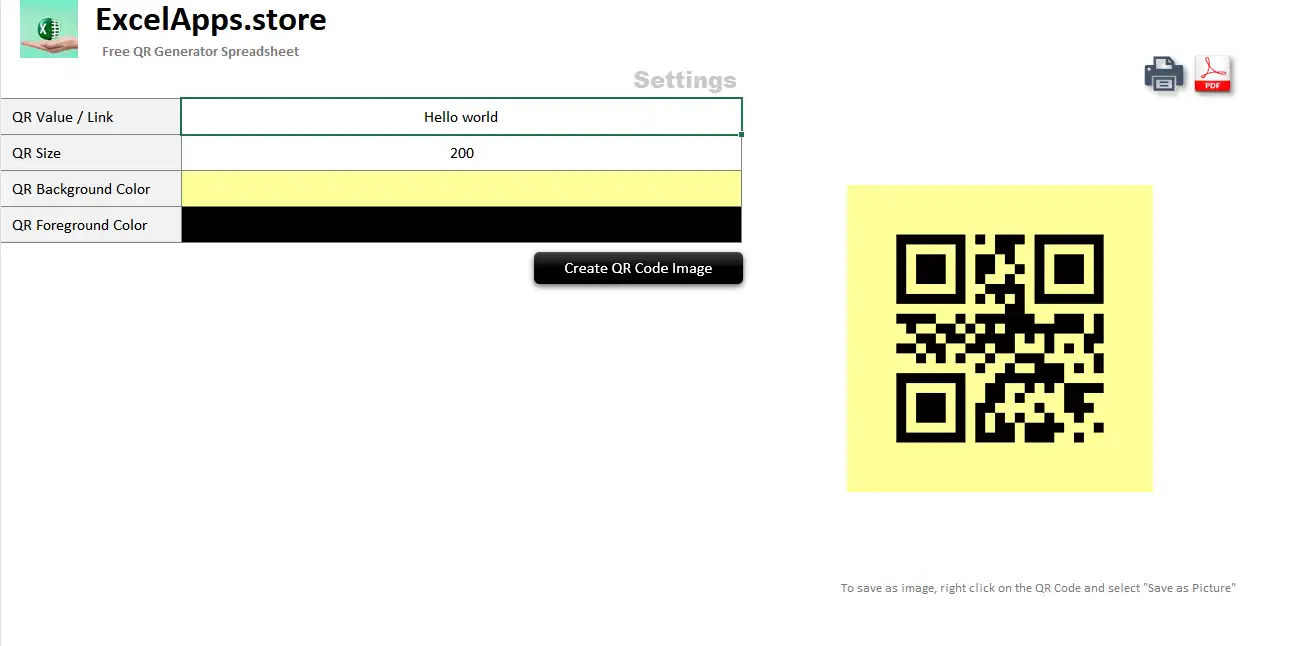
- Enter your value: In the “QR Value / Link” cell, type or paste the text or URL you want encoded in the QR code.
- Choose the size: Set the desired QR size (in pixels) between 30 and 300. The generated image will match this dimension.
- Pick your colors (optional): Double-click the background and foreground color cells to choose your preferred color scheme.
- Create the QR code: Click the Create QR Code Image button and let Excel generate the QR image on the right side of the sheet.
- Save, print or export: Right-click the QR image and choose Save as Picture, or use the top-right buttons to print or export the page to PDF.
Preview
Here’s what the Free Excel QR Code Generator looks like in action:
Download the Excel QR Code Generator
Create branded, size-controlled QR codes directly from Excel—then save, print or export them in seconds.
Download for Free⚠ This file uses VBA macros. If Windows blocks the file, right-click > Properties > tick Unblock, then open in Excel and Enable Content.
Need a custom QR workflow integrated into your existing Excel tools? Contact us to discuss a tailored solution.